Create real water effects with Flash CS4 & ActionScript 3.0
by 2 June, 2009 1:00 pm39
In this Flash CS4 tutorial you will learn a advanced technique called perlinNoise to create a realistic water effect into any image. We will show you how to apply it in two different situations, one in a river, creating the water effect in whole image, and the other one in a waterfall using a more complex process as it will reproduce the effect in a specific area.
Final Result:
Before Start:
This example will use some advanced action script elements like displacementMapFilter, perlinNoise and bitmapData from Action Script.
The perlinNoise filter is one of the most versatile filters, normally used to give some realism to animation but also one of the more complicated to work with, i will not explain how-to work with him, for that you have the very good documentation following the links:
In my tutorial i will use Flash CS4, but the things are similar on previous CS versions.
Requirements
You should have a installed version of Flash CS 4 (or previous CS 2/3 versions)
Have the 3 images distributed within the images.zip file
Pre-Requesites
Understand some of the basic concepts of working with bitmaps and bitmap data. Read the links written in “Before Start“.
Some imagination to produce your water effects.

Step 0 – Create a new Flash Project
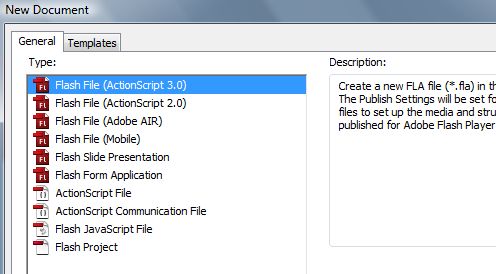
Open Flash CS4 and create a new Flash (Action Script 3) project.
Step 1 – Creating first example
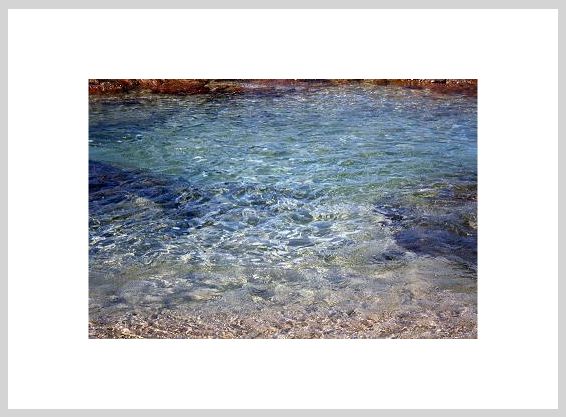
Import the image “water.jpg” into the stage.
Goto menu File->Import->Import into stage and select our water.jpg image (distributed in images.zip file)
The image is automatically placed into the stage, just center it on your screen, like the bellow example.
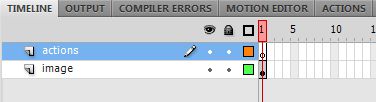
Name the actual layer to image. To do this, double click on the Layer 1 name, and change it.
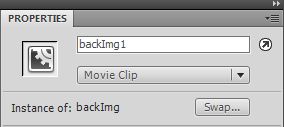
Next, we need to transform our image to a movieclip to receive the filter/water effect, just click on the image on stage, and then right click on it; select Convert to symbol, name it backImg. Without doing anything, go to the panel properties, and write the instance name to backImg1
:
Step 2 – Create a layer for actions
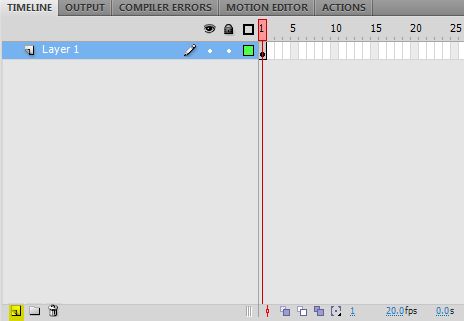
Click on the new layer button (like the following image, on yellow) and name it actions.
You should now have two separated layers:
Step 3 – Lets write some code
This is where the tutorial can become a bit complicated to understand, but i will explain line by line. For now select the layer actions, and click F9 key on keyboard, actions panel will now open, just write this code on it:
var bm:BitmapData=new BitmapData(backImg1.width, backImg1.height);
var disp:DisplacementMapFilter = new DisplacementMapFilter(bm,new Point(0,0),1,2,10,60);
var pt1:Point = new Point(0,0);
var pt2:Point = new Point(0,0);
var perlinOffset:Array = [pt1, pt2];

addEventListener(Event.ENTER_FRAME, onFrame);
function onFrame(evt:Event):void {
  perlinOffset[0].x +=1;
  perlinOffset[1].y +=0.1;
  bm.perlinNoise(45,9,2,50,true,false, 7,true,perlinOffset);
  backImg1.filters=[disp];
}
Simple code, but powerful animation, just run the project 🙂
Step 4 – Understand the code
The first two lines are the main declaration for the effect operation, e create a new BitmapData with the same dimensions of image “water” movieclip:
var bm:BitmapData=new BitmapData(backImg1.width, backImg1.height);
then, we instantiate the DisplacementMapFilter with our BitmapData (bm), the starting map point (0,0), the starting x and y (1,2) and the scaling factors x, and y. (10,60).
The following lines:
var pt1:Point = new Point(0,0);
var pt2:Point = new Point(0,0);
var perlinOffset:Array = [pt1, pt2];
Are the base points to be used to move the perlinNoise effect, these are defining the perlinOffset
We now add the EventListner to repeat the position of filter and provide us a real time animation, because the application speed is 25 frames per second (default, you can change this on main stage properties) we have to ‘replace’ the perlinNoise and displacement filter with a new one with some minor changes to the perlinNoise offset, that will result in a soft animation of the perlinNoise map.
addEventListener(Event.ENTER_FRAME, onFrame);
Now the handler, and the main effect (his core):
function onFrame(evt:Event):void {
perlinOffset[0].x +=1;
perlinOffset[1].y +=0.1;
bm.perlinNoise(45,9,2,50,true,false, 7,true,perlinOffset)
backImg1.filters=[disp];
}
Here, in every enter frame event we adjust the position (offset) of our perlinNoise, this will produce a smooth and cool move animation.:
perlinOffset[0].x +=1;
perlinOffset[1].y +=0.1;
Play with these values to change direction of the map movement
We now rebuilt the perlinNoise of our bitmapData:
bm.perlinNoise(45,9,2,50,true,false, 7,true,perlinOffset)
On perlinNoise we have some parameters, just play with them but take care with the third parameter (number of octaves) these are the number of perlinNoise “copies”, they are re samples and re sized parts of the perlinNoise effect, useful to improve the realistic effect. Bigger the value, bigger the memory use. Can see full PerlinNoise parameters here.
And finally we re-apply he filter:
backImg1.filters=[disp];
Well… that’s it! Run the project!
Step 5 – Creating a waterfall example
In the following steps we will create a waterfall effect, grab my waterfall image by saving bellow image.
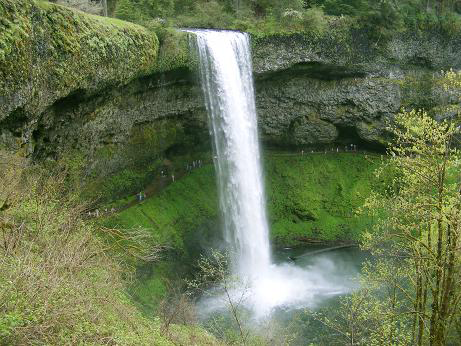
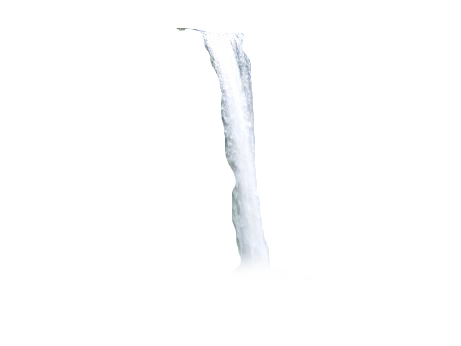
The unique thing that we need to apply in the perlinNoise filter is the “falling water” right? (if we apply to all image, will get a mess up!) Well we need to create a copy only of the water (not very precise, to do that open for example the photoshop and with lasso tool create a second layer only with the water falling, i will not covering it as it is not the aim of this article), just grab my already separated elements:
back.png
and fall2.png
Step 5.1. – Place both images on place
Create two layers (as shown previously) between the image and actions layers. Move our previous water image to the top of stage and put on the new bottom layer the back.png and on the top new layer put the fall2.png, put them at the same position so they became only one image. The waterfall needs to be the top of the other at the correct position, avoid this:
incorrect
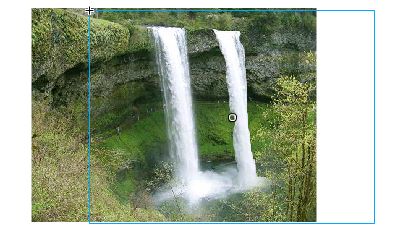
correct
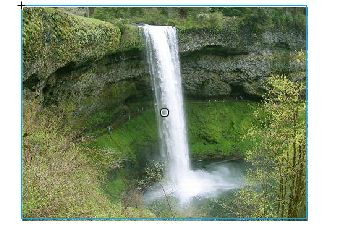
Convert them to movie clips, one called back and the other waterfall, name both instances (parameters window) with respective waterfall and back names (Very important), then we just need to repeat the same actions but with the water movie clip, as shown on the following code.
Step 5.2. – Write some more code!
Just add this code to layer actions, on top:
var bm2:BitmapData=new BitmapData(waterfall.width, waterfall.height);
var disp2:DisplacementMapFilter = new DisplacementMapFilter(bm2,new Point(0,0),1,2,10,60);

var pt3:Point = new Point(0,0);
var pt4:Point = new Point(0,0);
var perlinOffsetFall:Array = [pt3, pt3];
and in the function onFrame()
perlinOffsetFall[0].y -=1;
perlinOffsetFall[1].x -=0.1;

bm2.perlinNoise(20,10,1,99,true,false, 7,false,perlinOffsetFall);
waterfall.filters=[disp2];
Well, is done! In this second example, the perlinNoise is applied only to the waterfall image, and is moving down according to y axis, as the code demonstrate:
perlinOffsetFall[0].y -=1;
perlinOffsetFall[1].x -=0.1;
Step 5.3. – Final code and notes!
Now you can see the full code, and notice that you need few lines to create this cool effect.
/** WATER CODE **/
var bm:BitmapData=new BitmapData(backImg1.width, backImg1.height);
var disp:DisplacementMapFilter = new DisplacementMapFilter(bm,new Point(0,0),1,2,10,60);

var pt1:Point = new Point(0,0);
var pt2:Point = new Point(0,0);
var perlinOffset:Array = [pt1, pt2];

/** WATERFALL CODE **/
var bm2:BitmapData=new BitmapData(waterfall.width, waterfall.height);
var disp2:DisplacementMapFilter = new DisplacementMapFilter(bm2,new Point(0,0),1,2,10,60);

var pt3:Point = new Point(0,0);
var pt4:Point = new Point(0,0);
var perlinOffsetFall:Array = [pt3, pt3];

addEventListener(Event.ENTER_FRAME, onFrame);

function onFrame(evt:Event):void {
/*water perlin noise */
perlinOffset[0].x +=1;
perlinOffset[1].y +=0.1;
bm.perlinNoise(45,9,2,50,true,false, 7,true,perlinOffset);
backImg1.filters=[disp]

/*water fall perlin noise, moved by y, creating the fall effect */
perlinOffsetFall[0].y -=1;
perlinOffsetFall[1].x -=0.1;

bm2.perlinNoise(20,10,1,99,true,false, 7,false,perlinOffsetFall);
waterfall.filters=[disp2]

}
Run the project! Nice ah?
Now make your own experiments and show the result to the world! We would love to see it.
Related posts

Effects / by - 14 January, 2012 5:55 pm
Learn Digital Painting in Photoshop
It’s impossible for everyone to become an artist, but many of them have a will to become an artist, to draw beautiful paintings but again due to lack of command…

Effects / by - 28 December, 2011 2:28 pm
How to Make a New Year Greeting Card in Photoshop
This is so much easy to go in a market and by paying some bucks; purchasing a New Year Greeting Card or any other festival card for your loving person…

Flash / by - 10 August, 2011 4:13 pm
Creating a Gallery in Flash Using the Moto CMS Component
In this tutorial we will create a gallery with the help of the Moto CMS Component. I think many of you have heard about (or even worked with) Moto Flash…
3D / by - 24 July, 2011 5:21 pm
Visualize Your Web Page in 3D
Ever wondered if you could visualize your website in 3D? Well, here’s one such Firefox extension that allows you to do so. Tilt is a Firefox add-on that lets you visualize any web page DOM and provides the relationship between various parts of a website in 3D.
Interfaces / by - 1 March, 2011 2:18 pm
Beginners Guide To User Interface Design in C#
User Interface Design in C# Windows Form Application From Scratch In this C Sharp tutorial you will learn user interface design in C# application. This step-by-step tutorial will help you deeply understand…

Effects / by - 1 December, 2010 2:34 pm
Create an intelligent XML image Gallery & Slideshow in Flash CS4 (+PHP) – Part II/II
In this second part article you will learn how to build an image gallery that will load images from a web server. I decide to call it “Intelligent” because you don’t need to configure any XML or flash file. Just put the Flash movie and the images on a server and they will be loaded automatically. Nice ah?
Flex / by - 29 May, 2010 2:56 pm
Connecting Flex Calendar With Database Using AMF-PHP
Connecting Flex Calendar with Database using AMF-PHP Part I: Create a Dynamic Event Calendar in Flex Builder 3 with Actionscript 3.0 This is Part II of Create a Dynamic Event…
Server Side / by - 13 April, 2010 2:39 pm
CodeIgniter Tutorial – CodeIgniter Explained
Hello everyone, and welcome to the first CodeIgniter tutorial. What will you learn? 1. What is a PHP Framework? 2. What is CodeIgniter? 3. What is MVC? 4. MVC Pattern…
3D / by - 20 March, 2010 10:00 am
Away3D Shoot’em’Up Tutorial – Powerups
In this article we add some powerups to the game.

3D / by - 15 February, 2010 3:59 pm
Away3D Shoot’em’Up Tutorial – Sound Effects
In this article we add some sound effects to the game.
3D / by - 28 July, 2009 1:00 pm
Create from Scratch a Away3D Shoot’em’Up Game: Part 4
Now that we have the player and some enemies we need for them to be able to interact. This is done through collision detection which you will learn in this fourth part.
Effects / by - 21 July, 2009 1:00 pm
Getting Started With BetweenAS3
There are many popular open source tweening engines in the Flash community today. Numbered among these are Tweener, TweenLite/Tweenmax, Tweensy, and GTween. This is a short look at the capabilities of newcomer to the scene: BetweenAS3. BetweenAS3 is the tweening engine brainchild of Yoshihiro (yossy) Shindo and is available as part of the Spark project (i.e. it is brought to us by one of the same group that brought the world the FLARToolkit for Augmented Reality in Flash and countless other goodies).
3D / by - 15 July, 2009 12:50 pm
Create from Scratch a Away3D Shoot’em’Up Game: Part 3
After you have created the 3D level, in the part 3 of this Away3D series, we will show you how to add the player spacecraft and enemies.
Effects / by - 13 July, 2009 12:30 pm
Create an intelligent XML image Gallery & Slideshow in Flash CS4 (+PHP) – Part I/II
In this article you will learn how to build an image gallery that will load images from a web server. I decide to call it “Intelligent” because you don’t need to configure any XML or flash file. Just put the Flash movie and the images on a server and they will be loaded automatically. Nice ah?
3D / by - 8 July, 2009 1:45 pm
Create from Scratch a Away3D Shoot’em’Up Game: Part 2
In the part 1 of these tutorial series articles we created a framework that we could build off to start making the actual game. Now it’s time to create a 3D level for the player to fly through.
3D / by - 6 July, 2009 12:50 pm
Create from Scratch a Away3D Shoot’em’Up Game: Part 1
Today we start a 9 part tutorial series on creating a Shoot’em’Up game. We will cover all the necessary topics to create it from scratch, which will help you to understand and apply these guidelines to other projects. Ath this first part. we look at getting the Away3D engine up and running by creating a UIComponent that will contain and initialize the necessary Away3D components.
Effects / by - 1 July, 2009 1:00 pm
Build a Creative “Swirl Animated Menu” with Flash CS4
Flash it’s a powerful application and can be really complex, but even beginners can create a cool menu for demonstration or for use in a personal site. The menu that we will create is simple, but the swirl animation is something that you don’t see everywhere, for that I’ve decided to explain one way to make an animation of growing swirls without any Action Script code.You will also learn how to import artwork from illustrator where I’ve pre-made the graphics, the work is very simple and the result will be very cool.
Flash / by - 29 June, 2009 12:00 pm
SWFObject and Best Practice Implementation
With more and more full screen Flash web sites appearing on the internet, it’s important to understand how to properly embed the Flash movie in the browser window.
In this tutorial we will cover best practice embedding of SWF movies using SWFObject with a custom function for adding browser scrollbars for smaller browser windows.
3D / by - 24 June, 2009 12:30 pm
Create a 3D Bowling Game with JiglibFlash and Papervision 3D
Possibly the hottest thing to hit the Flash community since the advent of several excellent 3D engines is the recent debut of 3D physics engines. Here we’ll examine a way of using one of the more popular 3D engines, JiglibFlash, in conjunction with the prominent 3D engine Papervision3D to create a bowling game.
Flex / by - 22 June, 2009 1:00 pm
Create a Dynamic Event Calendar in Flex Builder 3 with Actionscript 3.0
This tutorial will allow readers to create an Event Calendar application using Flex. The final user will be able to plan over a daily, weekly or monthly plan.
You will learn on this step by step Flex tutorial, to create from scratch those Graphic User Interfaces, integrate them, and create a complete Rich Internet Application with a professional look.